 Clarirove
Choose how supported Mac fans respond
Fan speed is a trade-off between temperature, noise and the task in front of you. Clarirove provides cooling profiles on supported hardware, alongside sensor readings so you can understand what happens when you change a mode.
Check release availabilitymacOS 14+ · Apple Silicon & Intel · Hardware-dependent features
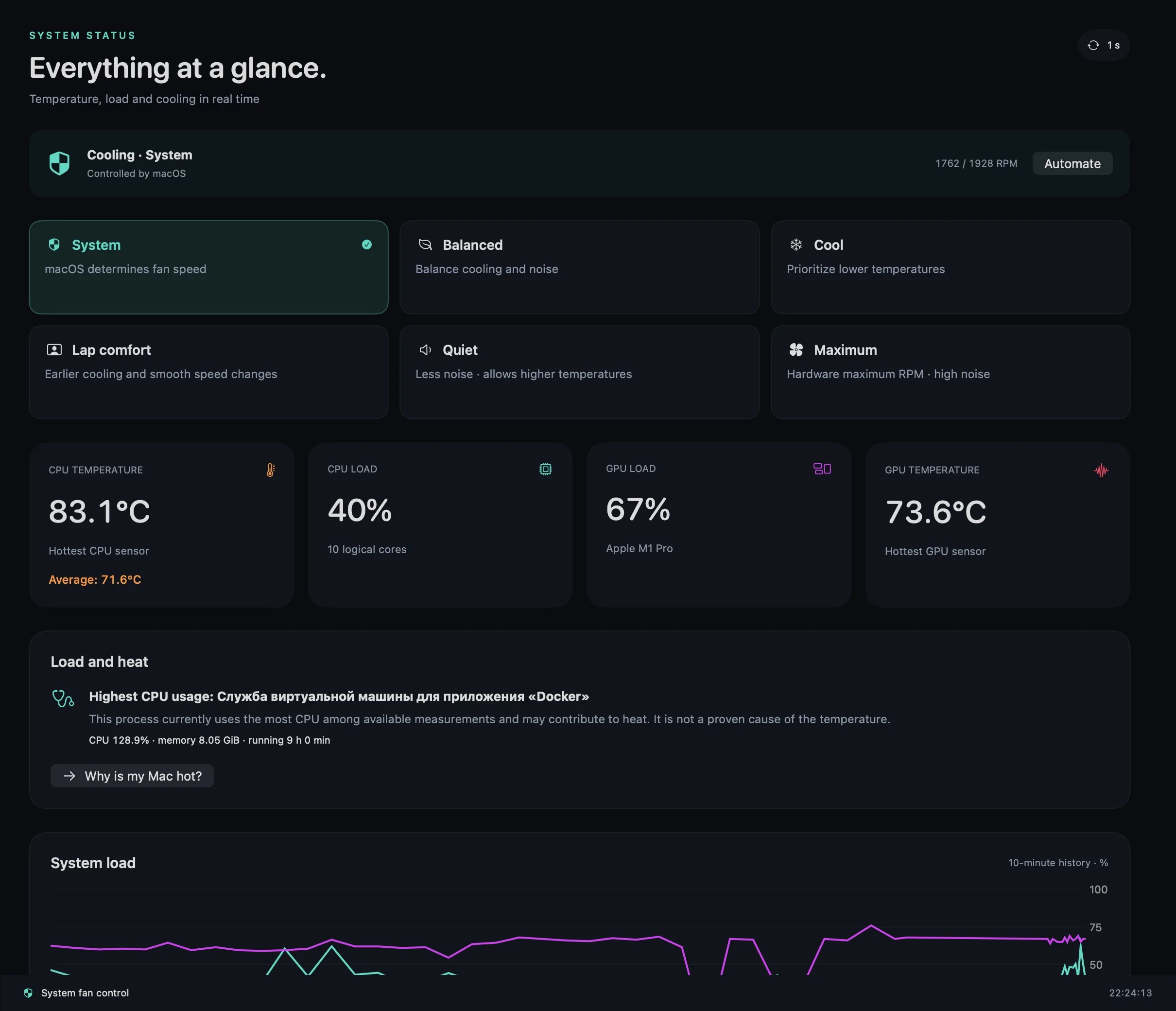
System control and manual profiles
System mode leaves fan decisions to macOS. The Balanced and Cool profiles offer different cooling preferences where control is supported. Other available profiles address quiet operation, lap comfort or maximum fan speed. Earlier cooling may mean more audible fans; less noise may mean higher temperatures.
Profile names are preferences, not promises about performance or a fixed temperature reduction. The result depends on the workload, room conditions, Mac model and the hardware control interface.
How to try a different cooling profile
Begin in System mode and note the available temperature and fan RPM readings during your usual workload. Select a supported profile, give the readings time to settle and compare noise and temperature. Return to System to hand fan control back to macOS.
Clarirove uses a privileged helper for supported hardware control, which can require administrator authorization. A manual mode changes automatic fan behaviour; use it deliberately and do not assume that a monitoring tool removes the need to pay attention to thermal warnings.
Compatibility comes before control
Apple Silicon and Intel support does not mean every Mac exposes the same fan controls. Availability depends on the model and access to its SMC interface. A Mac without fans can use supported monitoring features but cannot acquire cooling hardware through software.
The application applies device-reported fan limits and includes emergency cooling and restoration paths. These mechanisms do not guarantee that every hardware or firmware behaviour remains identical to automatic system control.
When changing fan speed is not the solution
A higher RPM cannot fix blocked ventilation, a failing fan or a workload that continually consumes available resources. Check system load and the physical environment first. For abnormal noise or recurring shutdowns, arrange a hardware inspection.
Do not compare RPM figures across different Mac models as a direct cooling score. Fan size and thermal design differ. Use the app’s temperature and activity views to compare your own machine under a repeatable workload.
Quick start
- Check available cooling controls and start in System mode.
- Observe temperatures and RPM during a repeatable task.
- Choose a profile, compare the response and return to System when appropriate.
Read the Clarirove user guide for installation, permissions and detailed limitations.
Questions about Mac Fan Control on Supported Macs
Does Clarirove add fans to a fanless Mac?
No. Fanless Macs can use available monitoring tools, but there is no fan speed to control.
Is a Cool profile a guaranteed performance boost?
No. Cooling behaviour and performance vary with hardware and workload. Clarirove does not promise benchmark gains.
Will macOS still choose the fan speed in manual mode?
Manual control can override automatic fan behaviour on supported hardware. Select System to restore system control.
Related tools
Try the readings on your own Mac
The 14-day trial does not require a payment card. Public downloads are available when a compatible release is published. See current release availability and license terms on the official site.