 Clarirove
Understand your Mac’s CPU and GPU temperatures
A warm Mac is not automatically a problem. Temperature becomes useful when you can relate it to the workload, the cooling mode and the sensors your particular machine exposes. Clarirove brings these readings together in a native macOS interface.
Check release availabilitymacOS 14+ · Apple Silicon & Intel · Hardware-dependent features
What a temperature reading can tell you
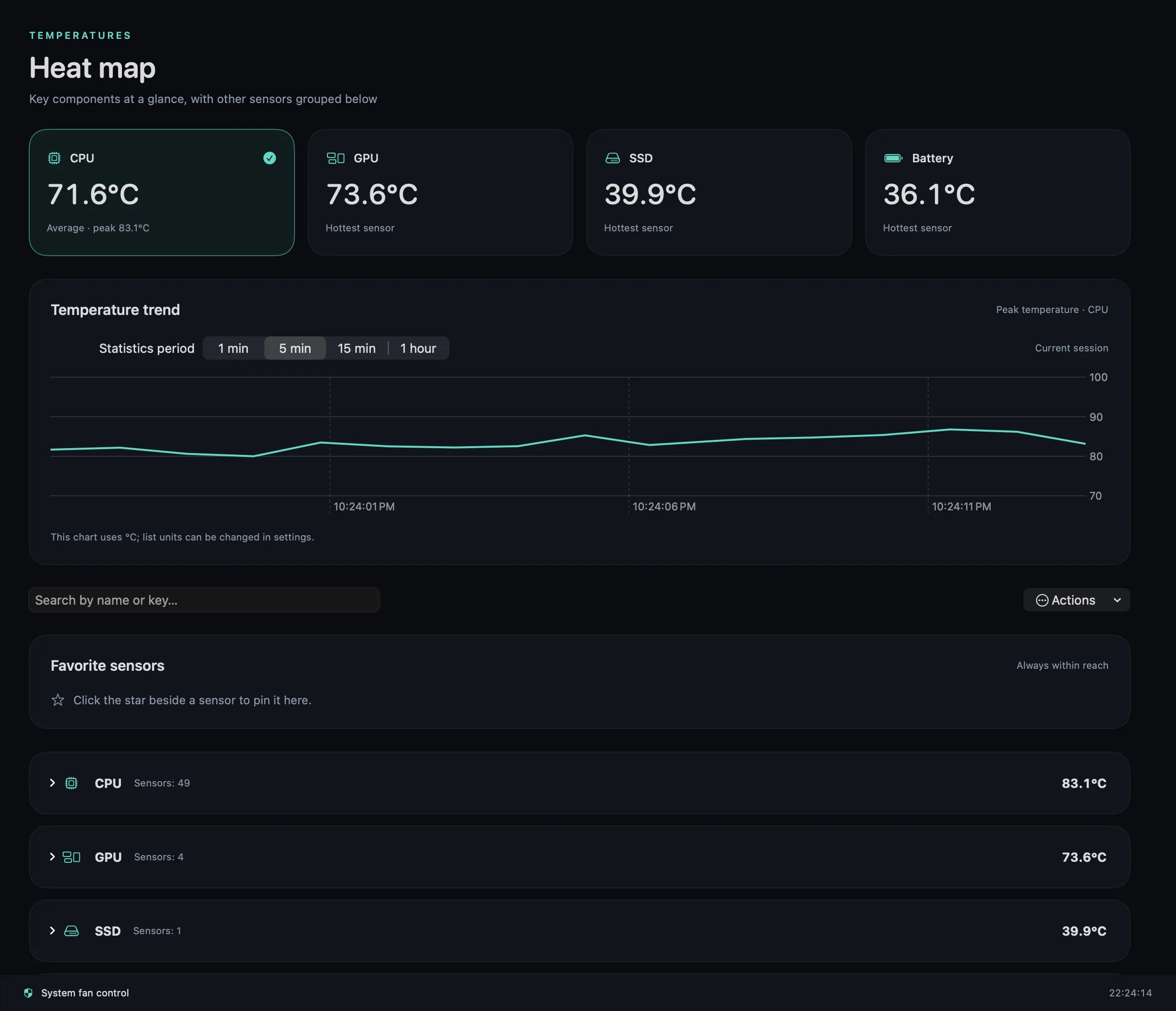
A single temperature number cannot explain why your Mac is warm. A video export, a game or a large build can raise temperatures without indicating a fault. Watch how the readings change as the task starts and finishes, then compare them with CPU and GPU activity.
Different sensors measure different locations. A CPU reading, a GPU sensor and an SSD NAND sensor are not interchangeable. Clarirove keeps hardware labels for sensors whose purpose is ambiguous rather than presenting them as a made-up “Mac temperature”.
Check temperatures with Clarirove
Open the temperature section, inspect the available sensors and watch the history while repeating the task that concerns you. Use the overview to compare temperature with system load. If a value is unavailable, treat it as missing data, not as zero degrees.
Next, close or pause the workload and observe the trend. For a process-level check, open the CPU diagnostics and compare the active processes. A busy process can help explain load; it is not proof that the process alone caused a temperature change.
Apple Silicon, Intel and sensor availability
Clarirove supports macOS 14 or later on Apple Silicon and Intel. The set of readable sensors depends on the Mac model and macOS. Some machines expose fewer readings; the app cannot guarantee a CPU or GPU temperature sensor on every supported Mac.
Monitoring also works on fanless models where readings are available. Cooling control requires separate hardware support. Start with monitoring and the system cooling mode before experimenting with a manual profile.
Practical steps when your Mac feels hot
Keep ventilation clear, use a firm surface and check whether background work is still running. Save your work before changing or stopping tasks. If you see persistent thermal warnings or unexpected shutdowns, seek hardware support rather than relying on a monitoring app to repair the machine.
Clarirove is an observation and control tool, not a hardware diagnosis certificate. Trends and context are more useful than comparing one reading with a universal “safe temperature” copied from another Mac model.
Quick start
- Open Clarirove and choose the temperature section.
- Run the task you want to investigate and watch the available sensor history.
- Compare the trend with CPU activity; return cooling to System when finished.
Read the Clarirove user guide for installation, permissions and detailed limitations.
Questions about Mac Temperature Monitor for CPU & GPU
Can Clarirove show GPU temperature on every Mac?
No. GPU temperature is shown only when a supported sensor is available. Apple Silicon and Intel models can expose different readings.
Does a higher temperature prove my Mac is damaged?
No. Temperature depends on workload and hardware. A monitoring app cannot establish a hardware fault from a single reading.
Can I monitor a fanless MacBook Air?
You can use available monitoring functions. A fanless Mac has no fan for the application to control.
Related tools
Try the readings on your own Mac
The 14-day trial does not require a payment card. Public downloads are available when a compatible release is published. See current release availability and license terms on the official site.