 Clarirove
See what is keeping your Mac CPU busy
A slow response, a warm chassis or louder fans can all coincide with high CPU activity. Clarirove helps you connect system load with active processes and temperature history instead of treating every busy Mac as a problem that needs “optimization”.
Check release availabilitymacOS 14+ · Apple Silicon & Intel · Hardware-dependent features
CPU load is context, not a health score
High CPU activity can be expected during useful work: compiling software, exporting media or indexing files. Look for sustained activity when the Mac should be idle, or a change that matches the task you are investigating.
CPU, GPU and memory pressure describe different parts of a workload. A low CPU reading does not prove the whole system is idle, and a temperature increase does not establish that a specific process caused it.
Find a workload worth investigating
Open the system overview, then inspect the CPU and process diagnostics. Note which process is active while the issue occurs and compare it with the application you are using. Repeat the same task if you need a useful comparison.
For an independent check, macOS Activity Monitor also lists processes and CPU use. Process percentages can exceed 100% when work uses multiple cores; do not interpret every such value as an invalid measurement.
Compare activity with temperatures
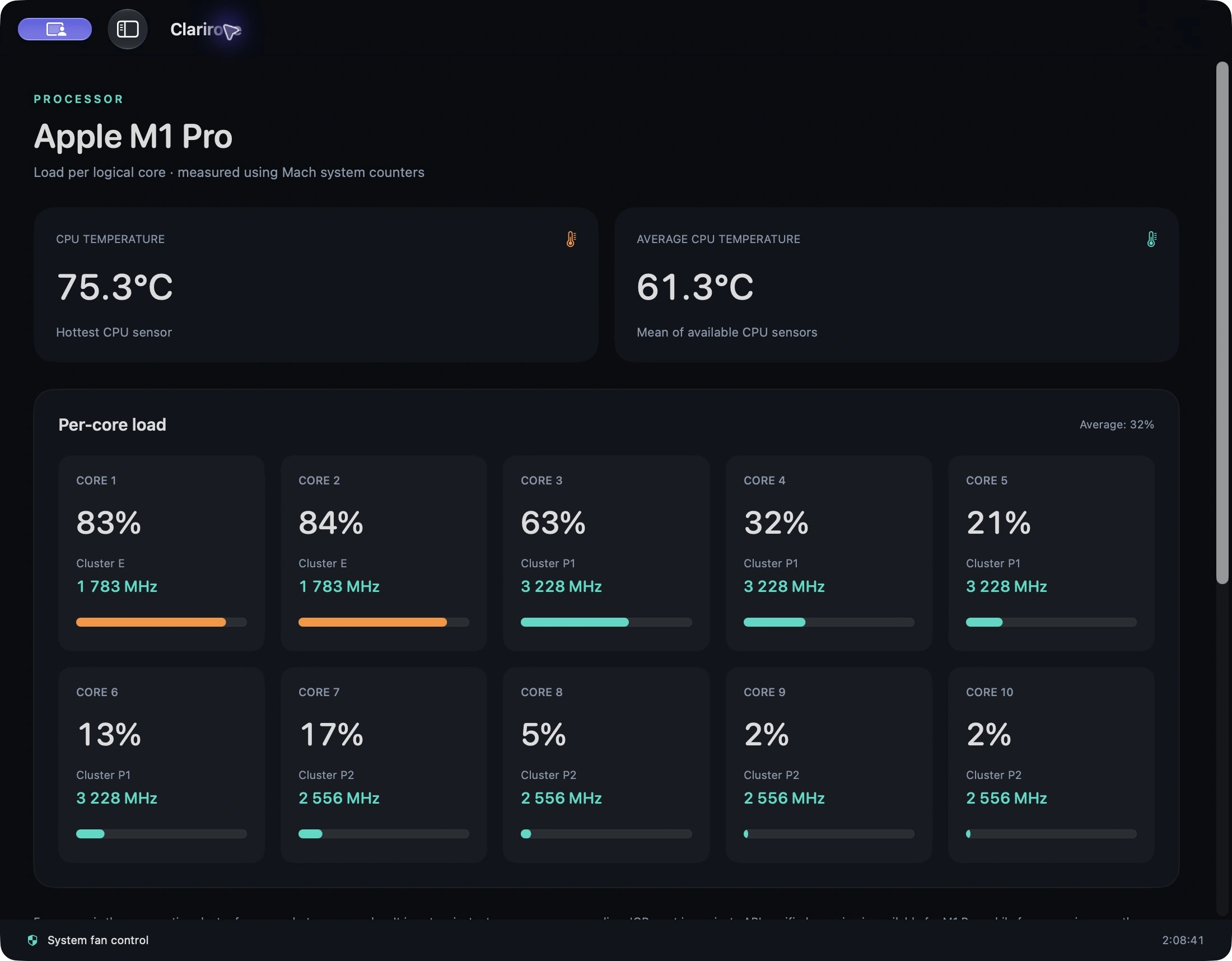
Use the temperature view to see whether heat rises during the workload and settles afterward. Clarirove presents available CPU and GPU readings alongside system activity. The available sensor and frequency detail depends on hardware and macOS.
Keep comparisons consistent: use the same task, cooling mode and power conditions. One short sample is weaker evidence than a repeatable pattern. If a sensor or frequency reading is unavailable, the app should not be treated as a source for that missing value.
Make changes carefully
Save work before closing a busy application. Prefer the application’s normal Quit command to forced termination. Ending a process can interrupt downloads, background services or unsaved work; a high CPU value alone is not a reason to terminate it.
Clarirove helps identify activity and provides diagnostics, but does not promise that disabling processes will make every Mac faster. Persistent stalls, crashes or thermal warnings may need troubleshooting beyond a system monitor.
Quick start
- Observe system activity while the slowdown occurs.
- Inspect processes and compare the active task with the temperature trend.
- Save work before quitting an application; repeat the task to check the change.
Read the Clarirove user guide for installation, permissions and detailed limitations.
Questions about Mac CPU Monitor & Process Diagnostics
Can a process use more than 100% CPU?
Yes. Process CPU percentages can represent usage across multiple cores, while a whole-system percentage uses a different scale.
Does CPU monitoring change my Mac’s performance settings?
Reading activity is separate from selecting a cooling profile or explicitly stopping a process. Monitoring alone is not an optimization operation.
Can I see every CPU frequency on every Mac?
No. Frequency detail depends on the available hardware and macOS interfaces. Missing data is not a zero-frequency measurement.
Related tools
Try the readings on your own Mac
The 14-day trial does not require a payment card. Public downloads are available when a compatible release is published. See current release availability and license terms on the official site.